
Last Updated on October 15, 2026
Updated May 2026 — Your complete guide to keeping your phone alive, connected, and working all day at Disneyland Resort.
Your phone is the most important tool you bring to Disneyland. The Disneyland app, Lightning Lane bookings, mobile ordering, wait times, PhotoPass, group communication, payment, photos — every part of a modern park day runs through it. A dead or disconnected phone is not a minor inconvenience. It is missed Lightning Lane reservations, cold mobile order food, an inability to find your group, and a measurably worse vacation.
This guide covers every common phone problem at Disneyland Resort in 2026 and the actual fix for each one. Battery management, WiFi reality, the Disneyland app when it is being slow, water and heat protection, group coordination across iPhone and Android, and the night-before checklist that matters more than any in-park trick.
Problem 1: Your Phone Battery Will Not Survive the Day
This is the most common phone problem at Disneyland and the one that ruins more days than any other. A full park day from rope drop to fireworks runs 14 hours or more. Constant screen time, GPS, the Disneyland app refreshing in the background, photos, video, and mobile ordering will drain even a fully charged modern smartphone by mid-afternoon. Most guests are at 30 percent before lunch.
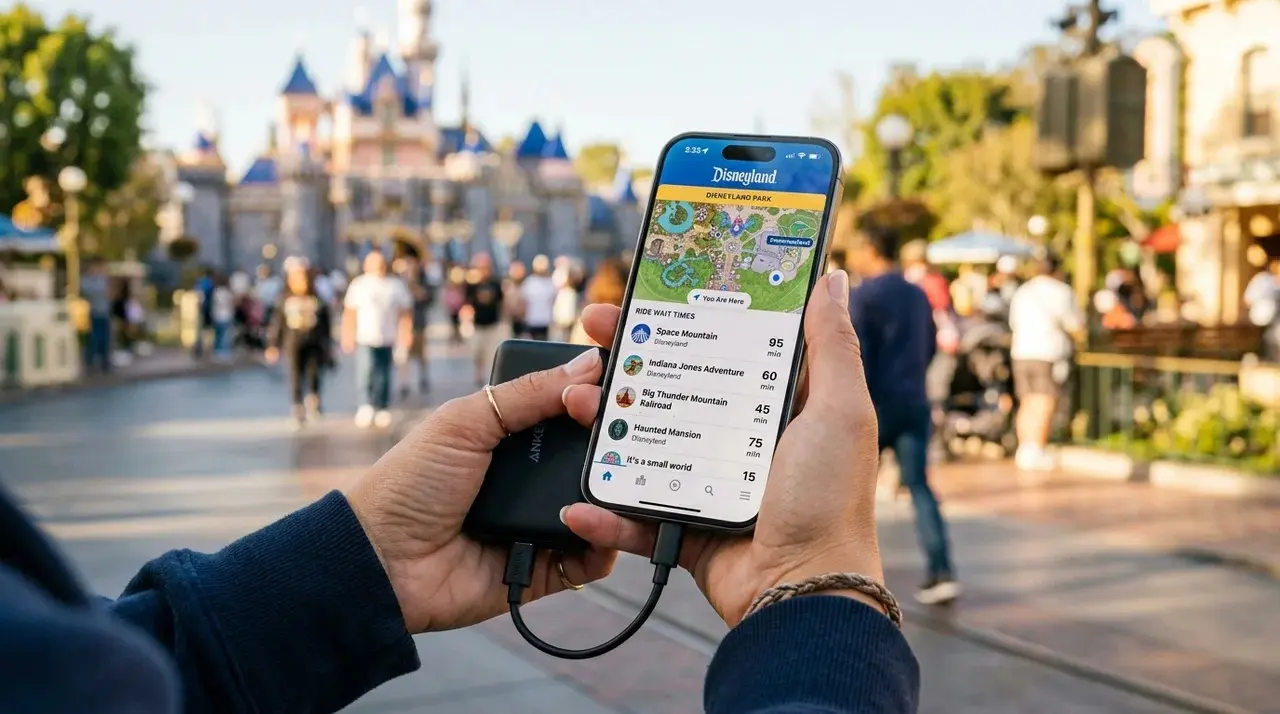
The solution is non-negotiable: bring a portable charger. A 10,000 mAh power bank from Anker, INIU, or Baseus costs $20 to $35 on Amazon and provides three to four full smartphone charges per cycle, which is more than enough for a full park day. Charge it overnight at the hotel, throw it in your bag, and plug in during queues, sit-down meals, and any moment of downtime.
If you forget your charger, Disneyland sells FuelRod portable chargers at kiosks throughout the resort. The original FuelRod kit is $38 to $40 and provides about one full smartphone charge per cycle. The newer MAX10 model, which arrived at the Gone Hollywood kiosk in DCA in March 2026 and is expanding to other locations, is $80 and delivers three to four full charges with magnetic charging compatibility for newer iPhones. Swaps at any FuelRod kiosk inside the resort are free, so you can keep cycling through fresh batteries all day. For a complete breakdown of FuelRod locations, swap mechanics, and whether it is actually worth buying versus a regular power bank, see our complete FuelRod Disneyland guide.
Settings That Actually Save Battery
Most battery advice online is generic and not particularly effective. Here are the settings changes that make a real difference at Disneyland specifically.
Drop your screen brightness to 50 to 60 percent. The screen is the single biggest battery drain on a smartphone, and full brightness outdoors is rarely necessary. Even in Anaheim sunlight, 60 percent is fully readable.
Switch from 5G to LTE in your cellular settings. The Disneyland Resort area does not have reliable 5G coverage in most park locations, and your phone will burn battery constantly searching for a signal it cannot find. On iPhone, go to Settings, Cellular, Cellular Data Options, Voice and Data, and select LTE. On Android, the steps vary by manufacturer but are in the mobile network section of Settings.
Use Airplane Mode on indoor rides. Inside Pirates of the Caribbean, Haunted Mansion, Indiana Jones Adventure, and similar enclosed attractions, your phone loses signal and burns battery aggressively trying to reconnect. Flip Airplane Mode on as you board and off as you exit. Across a 12-hour day with a dozen indoor rides, this single habit saves 10 to 15 percent of battery.
Turn off Bluetooth if you are not using it for headphones or a smart accessory. Background scanning for Bluetooth devices runs constantly and adds up.
Close background apps before entering the park. The Disneyland app and your camera are the only two you genuinely need running. Force-close everything else.
Download offline park maps the night before. The Disneyland app supports offline mode for maps, which prevents the app from constantly reloading map data on a weak connection.
Problem 2: WiFi at Disneyland Is Not as Good as Disney Says It Is
Disneyland Resort offers free WiFi under the network name Disney-Guest, available throughout both parks, Downtown Disney, and all three resort hotels. AT&T is the official wireless sponsor of the resort. The network works fine for basic tasks but degrades meaningfully under crowd pressure.
To connect, open your phone’s WiFi settings, select Disney-Guest, and accept the terms when the browser page loads. Do this before you walk into a queue or onto a ride, because the terms-acceptance prompt requires a working browser connection and will not always complete in low-signal areas. If you lose connection mid-day and reconnect, you may need to re-accept the terms.
WiFi signal is not uniform across the parks. The strongest, most reliable coverage clusters in a few specific areas. Central Plaza near the Partners Statue at the end of Main Street has consistent coverage. Main Street USA generally has reliable signal because of how access points are positioned along the entrance corridor. Areas near quick service restaurants typically have stronger signal because access points cluster around dining locations. The Esplanade between the two parks has strong signal before you even enter. Downtown Disney has excellent coverage near Starbucks and along the main walkway. Hotel lobbies at the Grand Californian, Disneyland Hotel, and Pixar Place Hotel all have strong, reliable signal in public areas.
Several areas have notoriously weak signal — both WiFi and cellular. Inside enclosed rides like Pirates of the Caribbean, Haunted Mansion, Indiana Jones Adventure, and Space Mountain, signal drops or disappears entirely. Deep inside themed lands like the back corners of Adventureland, signal is spotty. The underground sections of the Indiana Jones Adventure queue are the worst signal area in the resort. Peak hours from 10 AM to 3 PM see network congestion across both WiFi and cellular as thousands of guests use both simultaneously.
The practical answer when you are dealing with slow connectivity: do not commit to WiFi or cellular. Test both. For time-sensitive actions like grabbing a Lightning Lane reservation that just opened, switch your phone between WiFi and cellular and use whichever is faster at that exact moment. Sometimes that is WiFi, sometimes cellular is dramatically faster because the WiFi network is overloaded. The fastest way to test is to open the Disneyland app on each connection and see which one loads the home screen instantly.
Problem 3: The Disneyland App Is Slow or Not Loading
The Disneyland app is essential. It is also frustrating when it is being slow, which happens regularly during peak hours when servers are overloaded.
For general slowness, the first move is switching between WiFi and cellular as described above. If both are slow, force-close the app completely (not just minimize it) and reopen it. On iPhone, swipe up from the bottom and swipe the Disneyland app card up to close. On Android, use the recent apps button and dismiss the app. Move physically closer to a WiFi access point if you are deep in a themed land. If the app is still slow, wait five minutes and try again. During the morning rope drop rush, Disney’s servers get hammered and slowness usually resolves on its own within a few minutes.
If the app is not showing accurate wait times or ride availability, pull down on the home screen to force a refresh. If that does not work, log out of your account and log back in to force a fresh data pull. Make sure your park tickets are properly linked to your account, because what you can see and book is tied to your linked admission. Delete and reinstall the app if it has been misbehaving for multiple sessions in a row.
For Lightning Lane purchases that are not going through, the most common fix is making sure your payment method is saved and current in your account before you enter the park. Trying to add a payment method in the moment of buying a Lightning Lane is exactly when the app is most likely to fail. Save it the night before. If a Lightning Lane time slot shows as sold out, refresh and try again immediately — availability shifts constantly as guests modify reservations and slots open back up.
Mobile ordering requires a stable connection. If a mobile order will not submit, move to a stronger signal area before retrying. Note that mobile ordering at some locations has been removed or modified throughout 2025 and 2026, so check the mobile order tab in the app to confirm which restaurants are currently supported.
Problem 4: Your Phone Gets Wet
This is a real Disneyland problem and most guides ignore it entirely. Splash Mountain (now Tiana’s Bayou Adventure), Grizzly River Run, the water table in Cars Land, summer rain showers, and the occasional dropped drink will all introduce water to a phone that was supposed to stay dry.
Modern phones are water resistant, not waterproof. iPhones from the 12 onward are rated IP68, meaning they survive submersion in fresh water up to six meters for 30 minutes. That sounds robust, but the rating degrades over time, and Apple specifically excludes water damage from warranty coverage. Treat water resistance as a backup, not a strategy.
For water rides, put your phone in a zippered bag pocket or a waterproof phone pouch with a lanyard. Cheap waterproof pouches sell for $10 on Amazon and let you use the touchscreen through clear plastic, meaning you can keep your phone accessible without exposing it. For families with kids who love Grizzly River Run multiple times in a single day, this is a worthwhile investment.
If your phone does get wet, do not plug it into a charger immediately. Wipe it dry, leave it powered on, and let any moisture in the charging port evaporate before connecting any cable. The old “rice trick” is a myth and does not actually help. If your phone shows a moisture warning when you plug in a charger, leave it unplugged for several hours.
Problem 5: Your Phone Overheats in the Summer Sun
Anaheim summers regularly hit 90 degrees Fahrenheit, and a phone in a pocket or sitting in a stroller cup holder in direct sunlight can overheat fast. Once a phone hits its thermal protection threshold, the screen dims automatically, performance throttles, and in extreme cases the phone shuts off until it cools. This often happens at the worst possible moment — in line for a Lightning Lane, mid-photo, or mid-mobile-order.
Keep your phone out of direct sunlight when possible. A bag pocket is cooler than a back pocket facing the sun. A stroller cup holder is the worst possible location because it sits in full sun and traps heat. If your phone is overheating, move it to shade, take the case off temporarily to release heat, and stop using GPS or video for a few minutes. Do not put a hot phone directly in front of an air conditioning vent — the rapid temperature change can cause condensation inside the device.
Phones with cases trap heat more than phones without. On extremely hot days, consider removing your case for the afternoon hours and putting it back on at night. The case offers drop protection, which matters in queues and on rides, but the heat trade-off is real on triple-digit days.
Problem 6: Keeping Your Group Connected When Phones Die or Get Separated
Losing a family member in a crowded park when a phone dies is genuinely stressful, and it happens more often than people expect. Three things prevent it.
Set a physical meeting spot before you split up. Agree on one specific landmark — the Partners Statue at the end of Main Street, the entrance to Pirates of the Caribbean, or the Carthay Circle Restaurant fountain at DCA — that everyone knows. If phones die or run out of signal, anyone separated knows where to walk. This single habit prevents most lost-family situations before they start.
Use AirTags or Tile trackers for kids. Attach an AirTag to a child’s belt loop, backpack zipper, or shoelaces. Even if their phone is dead or they do not have one, you can locate the tracker from your own phone. Battery life on a single AirTag is roughly a year, so this is a once-and-done setup. For families with younger kids who cannot reliably manage their own devices, this is the single most useful piece of tech you can bring.
Enable location sharing with your group before you enter the park. On iPhone, use Find My; on Android, use Google’s Location Sharing. The catch: if your group is mixed iPhone and Android, Apple’s Find My does not work cross-platform. The fix is to use Google Maps location sharing instead, which works on both operating systems. Set this up the night before so you are not fighting with permissions in the parking lot.
For groups with separated kids who do not have phones, Disney Cast Members are trained for reunification. If a child gets lost, contact any Cast Member immediately — they will radio it in and get the reunification process started. Do not go to the central Lost and Found facility, which handles property only. The nearest Baby Care Center doubles as a Lost Children facility.
Problem 7: PhotoPass Photos Are Not Showing Up
Disney’s PhotoPass photographers take photos throughout the parks and link them to your account via a QR code in the Disneyland app. When photos do not sync to your account, here is what to check.
Make sure you are scanning your QR code on the photographer’s device for every photo. The QR code lives in the Disneyland app under PhotoPass. The photographer scans it before taking your photo, and that scan is what links the photo to your account. If you forget to scan, the photo will not link.
Photos can take 24 to 48 hours to appear in your account, particularly on busy days. Do not panic if a photo is not visible immediately after it is taken. Wait a full day before assuming something went wrong.
If a photo is missing after 48 hours, check your account on a desktop browser at disneyland.com rather than only the app. The web version sometimes displays photos that have not yet synced to the mobile app’s cache. If the photo is still missing after 72 hours, contact PhotoPass support through the Disneyland app’s help section. They can often locate photos linked to your account that are not appearing in your gallery.
If you have Lightning Lane Multi Pass (the service that replaced Genie+), PhotoPass downloads are included for that day. If you do not have a subscription, individual photo downloads are paid. Plan accordingly before you load up on PhotoPass photos expecting free downloads.
The Night-Before Phone Preparation Checklist
This list matters more than any in-park trick. Do all of this the night before your visit and your phone day starts on solid ground.
Charge your phone to 100 percent. Charge your portable battery to 100 percent. Download the Disneyland app and log in. Link your park tickets to your Disneyland account. Save a current payment method in your Disneyland account. Download offline park maps in the app. Enable location sharing with everyone in your group across both iPhone and Android. Agree on a physical meeting spot in case of separation. Lower your screen brightness to 60 percent and switch from 5G to LTE in your cellular settings. Close every background app except the Disneyland app and your camera. Pack your charging cable and portable battery in your day bag. If you are bringing a waterproof phone pouch, put it in the bag too.
Twelve items, takes about 15 minutes the night before. Skip them and you will spend your park day fighting with your phone instead of using it.
Plan the Rest of Your Trip
For the complete strategy on rope drop, Lightning Lane, and how to use your time at the resort effectively, the Enchanted Insider Disneyland Itinerary Guide covers everything you need. For the best rates on hotels and tickets near the resort, Get Away Today is the travel partner we use and recommend for Disneyland Resort vacation packages.
FAQ
A 10,000 mAh power bank from a reputable brand like Anker, INIU, or Baseus is ideal. These cost $20 to $35 on Amazon, provide three to four full smartphone charges per cycle, and easily fit in a day bag. Inside the parks, the FuelRod MAX10 ($80) provides similar capacity with the added convenience of free swaps at any FuelRod kiosk inside Disneyland Resort.
Disneyland Resort offers free WiFi under the network name Disney-Guest, available throughout both parks, Downtown Disney, and the resort hotels. Open your phone’s WiFi settings, select Disney-Guest, and accept the terms when the browser page opens. Complete the connection in a strong-signal area like Main Street or near a quick service restaurant before entering queues, since the terms-acceptance prompt requires a working browser connection.
The Disneyland app gets overloaded during peak hours when thousands of guests are using it simultaneously, particularly during morning rope drop and around Lightning Lane drop times. To improve speed, switch between WiFi and cellular to find the faster connection, force-close the app completely and reopen it, move closer to a WiFi access point on Main Street or near restaurants, or wait five minutes for server load to ease.
Wipe your phone dry immediately and do not plug it into a charger until it is fully dry. The charging port needs time for moisture to evaporate, and connecting a cable while wet can damage the phone. The “rice trick” is a myth and does not actually help.
To prevent water damage in the first place, store your phone in a zippered bag pocket or a waterproof phone pouch with a lanyard before riding Grizzly River Run, Tiana’s Bayou Adventure, or playing in the Cars Land water tables.
Set a physical meeting spot before you split up — a specific landmark like the Partners Statue at the end of Main Street or the entrance to Pirates of the Caribbean. Use AirTag or Tile trackers attached to children’s bags or belt loops so you can locate them even if their phone is dead. Enable Google Maps location sharing instead of Find My if your group is a mix of iPhone and Android, since Apple’s Find My does not work cross-platform.